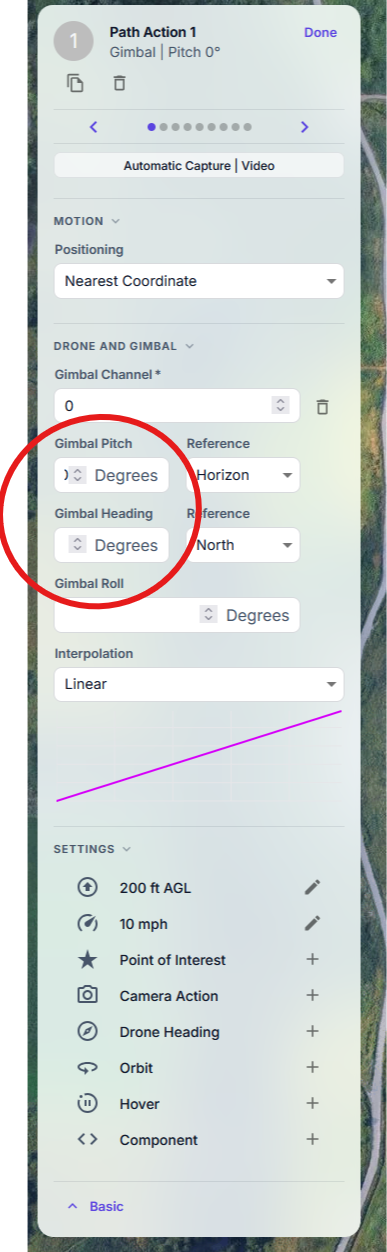
Unable to see setting in Gimble Pitch and Heading fields

As the title says, if you go to change the gimbal pitch or heading for a path action, yo can't actually see the figure you're entering, it looks as though the the reference field boxes need shifting right, then the pitch and heading fields increasing in size(see attached screenshot)
Comments
7 comments
Oops! You beat me to it Martin! Nice to see another fan of that very lovely setting! : )
I just delete my since we don't need duplication and yours captures it perfectly. I usually check first to see if it was already documented, today I had not yet had my coffee. Cheers Martin!!
Tony Simek I'm Just a fan of Dronelink in general, but yes those are very handy settings to use
This also occurs on the control panel for photos
Thanks guys - good catch. The unit name (“Degrees”) took up the whole field, so there was no room left to show the value. This is fixed in today’s web app update: these fields now show the symbol (°), and the full name appears when you hover over it. We made the same fix in about 40 other fields. The gimbal and drone settings now sit under a “Gimbal” or “Drone” heading with shorter labels, so they also fit in other languages and with larger text sizes. Refresh the planner to get the update.
Looking good Jim 👍
Sweet. All is right in the Dronelink world!
Please sign in to leave a comment.