Map Command with Video - Camera Always On

I am using the Dronelink Map component to fly with the purpose of creating an orthomosaic. I want to experiment with extraction of images from video capture mode. I need help determining how to keep the camera on continuously when the drone makes its 180 degree turn to follow a new parallel path. The Map component, by default, seems to have the video turn off during the turn and restart at the beginning of the next path. Thanks for any insights!
Comments
10 comments
Choose none for capture mode:
Then add automatic video capture at the plan level:
Super. I will try this out.
Is there a way have video always recording(rather than stop/start), and preserve the cool path curves auto-produced in Video capture mode?
I'd like to use the Map/Grid functionality as a sort of search method, with gimbal set to something like -45°.
Per the note above, set the capture mode to none. Then just start recording and begin the mission.
This article/video shows the Forestry plan shooting photos with curved switch backs(U-turns).
https://support.dronelink.com/hc/en-us/articles/4405635351315-Mission-Planning-Starting-with-a-Map-Template
I know there have been many requests to implement limiting the extent that the drone travels within a defined mapping area, which I think I see in the current web app behavior, with right angles and dead-stops in Photo and None mode.
Is there a way to re-enable the radiused switch-backs, particularly in Capture Mode=None?
My intention is to video record the whole Map component's worth, back and forth, along with the curved turns.
When set to None mode, the radiused switch-backs go back to dead stops right angles, the same as Photo mode. I want no stopping and curves, just like Video mode.
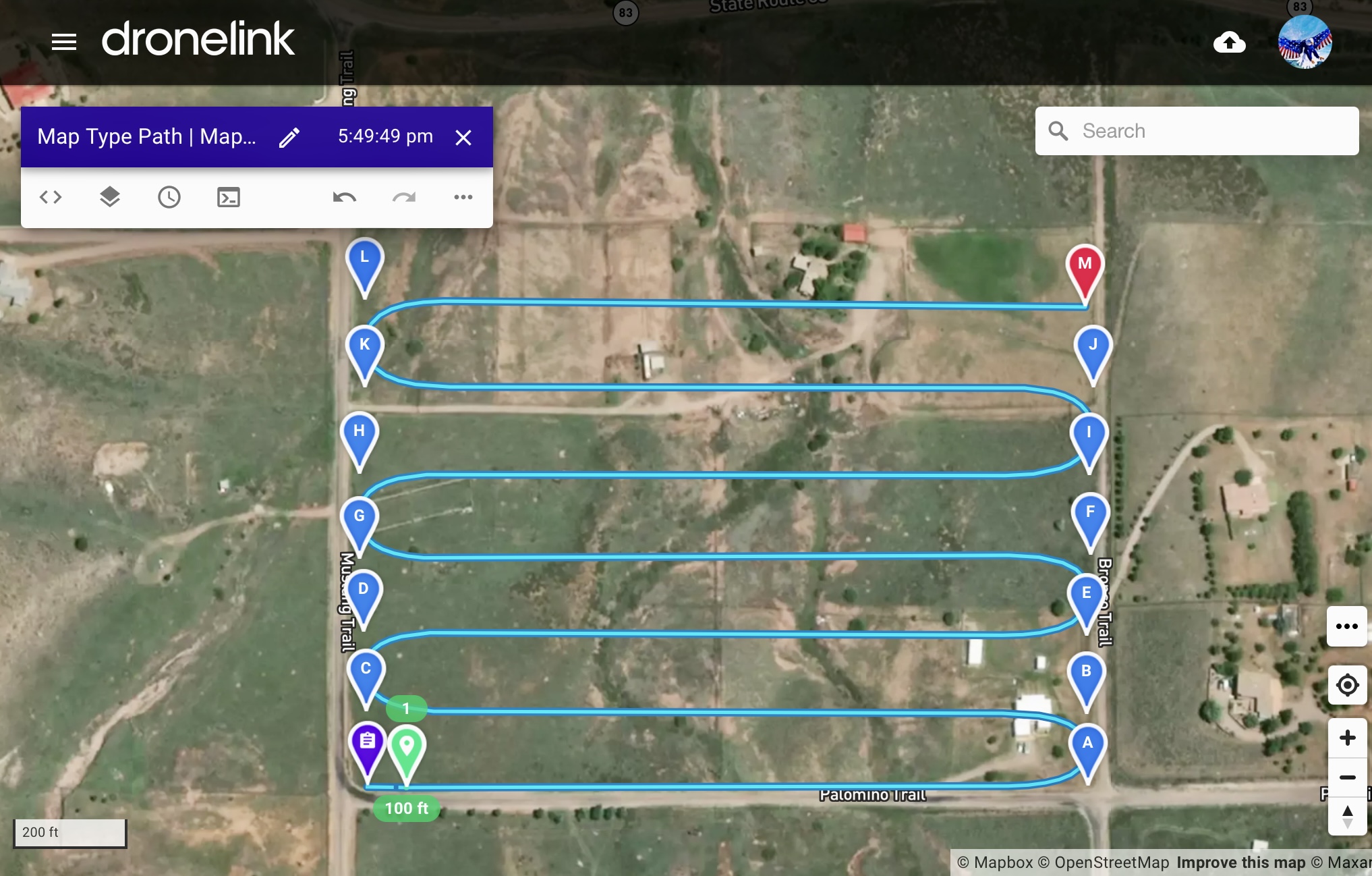
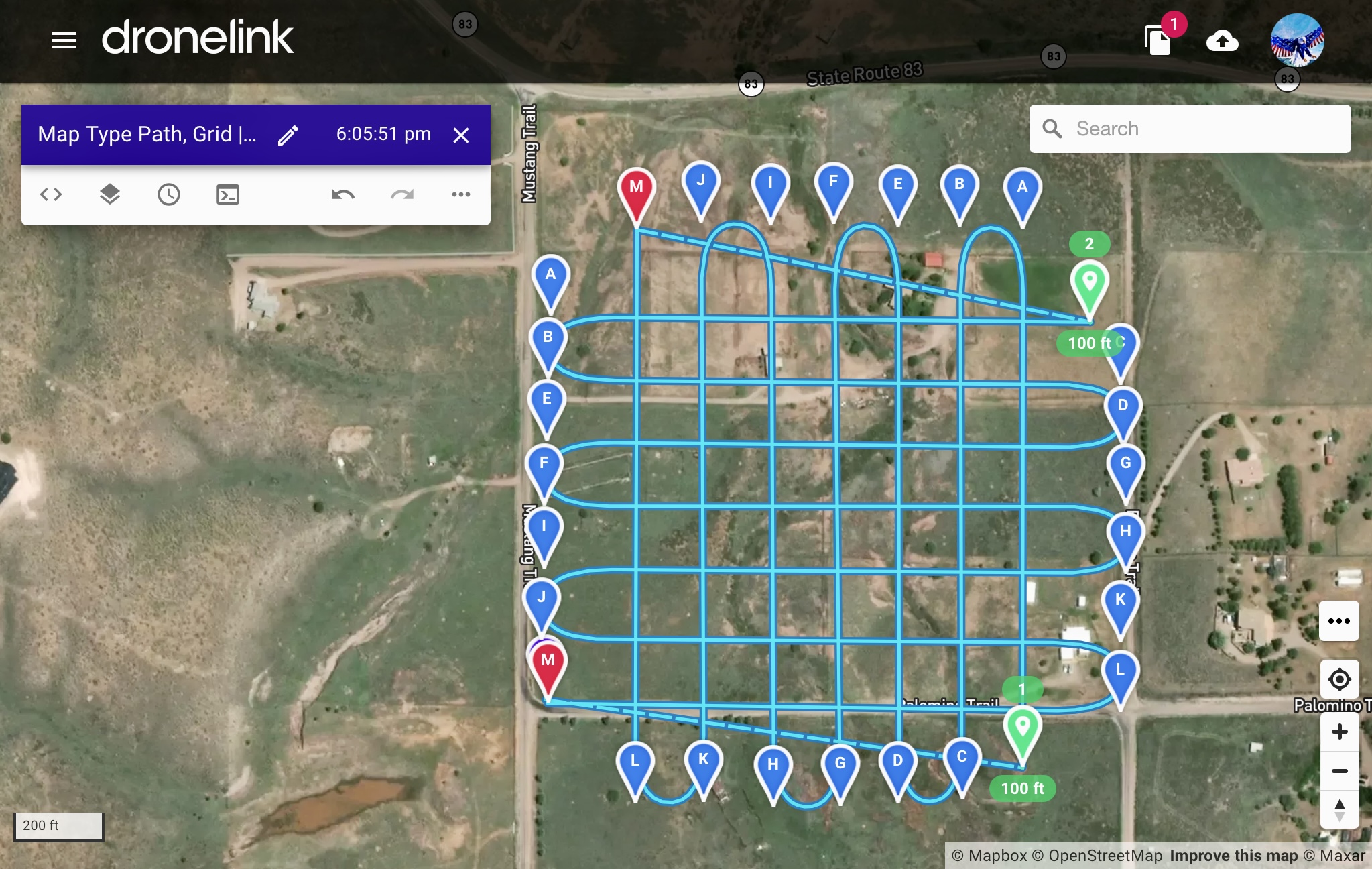
I Don’t know of any way with maps. It would not be hard to create a mapping type path. Just start a new plan from scratch. Then add a path and set it to straight curves first then add more waypoints and arrange it in a manner just like a map. When done it will have straight corners so just click on the path in the list and set the pathing radius to curved. I set curve to 150’’ and this example took me literally about 3 minutes and covers about 30 acres. This way the curves will be the same based on each of the turns you made. More time and it can do anything you want in any configuration. You can then just add video commands at the start of the mission. You can even copy to clipboard then paste into the plan and rotate it to make a grid pattern if wanted. It will have a another destination to fly to but still continue to record constant video. Enjoy..
Hey Neal,
You'll have to go with what Mike suggested for video in curved map ends. There is no way with the map component.
The reason why the curved paths exist is so that the drone can get to the correct speed before it starts data capture, without any data being captured, the drone does not need to ramp into a path segment at a certain speed, so that section is gone.
Best,
Jacob
Thanks, Mike. It all makes sense. It's also a good guide for those with accounts that don't include Maps, who can do what they need with video or interval photo.
Jacob, thanks. As soon as I switch photo capture priority from distance to time, it clicked. With distance priority, it's cool to see, in the mission preview, the photo capture commands calculated with the acceleration/deceleration at the caps.
Still, I find the the Map component compelling, for several reasons. I may decide that the benefits outweigh the need to have drone-recorded video of the turns.
🤙🏼😁
Please sign in to leave a comment.