Waypoint mission stop and take photo at each Cardinal Point.

I have repeated missions that require 8 cardinal points that stops at North, East, South, West and in between each cardinal point. So 8 photos total. I have to do this at 350ft AGL, 150ft AGL, and sometimes at 50ft AGL.
I created a waypoint mission, where I placed my eight cardinal points, flight speed is set to 25mph and now I want to set a still image taken at each cardinal point, Each waypoint is pointing at a single POI, that is located in the center of this orbital shaped waypoint mission. I want the drone to stop at each waypoint, take the photo, and then continue to the next waypoint and do the same, for all 8 waypoints.
Yes, my Mavic 3 multispectral, with its mechanical shutter, can more than likely take a photo while continuously moving, but it is only 8 images, I can't afford to have any blurred images, better to be safe than sorry.
I cannot seem to get the drone to stop and take the photo in preview mode, or at least I can tell if it is stopping during preview mode. The drone will also not maintain the 25mph between each point.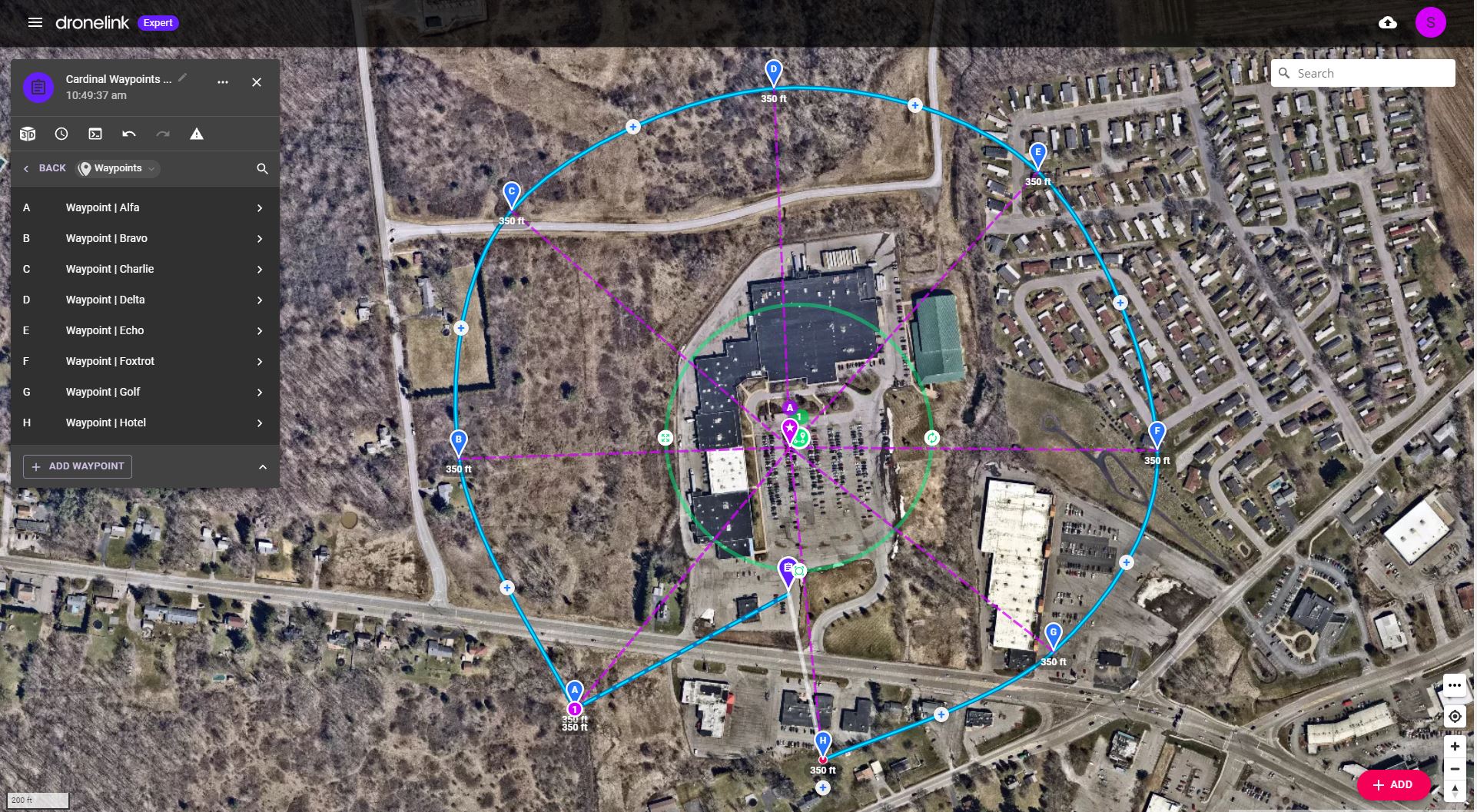
Camera Commands at each Waypoint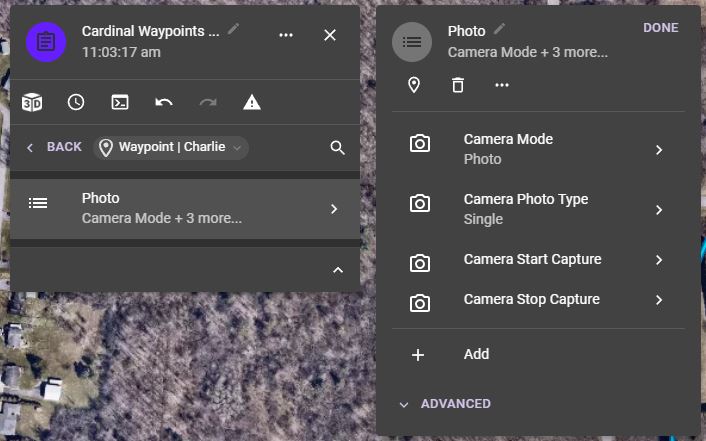
Any tips or suggestions?
Thank You
David
Comments
13 comments
If you have professional plan, Then you can use the on the fly cardinal photo function
Sorry, I only have access to the Growth plan features and Cardinal Photos is not included, so this does not help.
Thanks anyway for your quick response.
it is on the growth plan its in the native app not the web app, I only have growth myself so know it works
Also, I watched a video about setting up a cardinal photo. It does have to be done in the App and NOT the web based version. In this video, it is mentioned that it also requires that the drone be connected to the controller or phone. I have the (RC Pro Enterprise Controller). Then you have to fly to the location and setup an orbit plan at the center point of your POI. That is a "No-Go" at this point. I am in the middle of winter in central NY. I cannot fly due to the weather. So, I am back to my original desktop plan.I need to know how to stop the camera at each waypoint, take a photo then move to the next.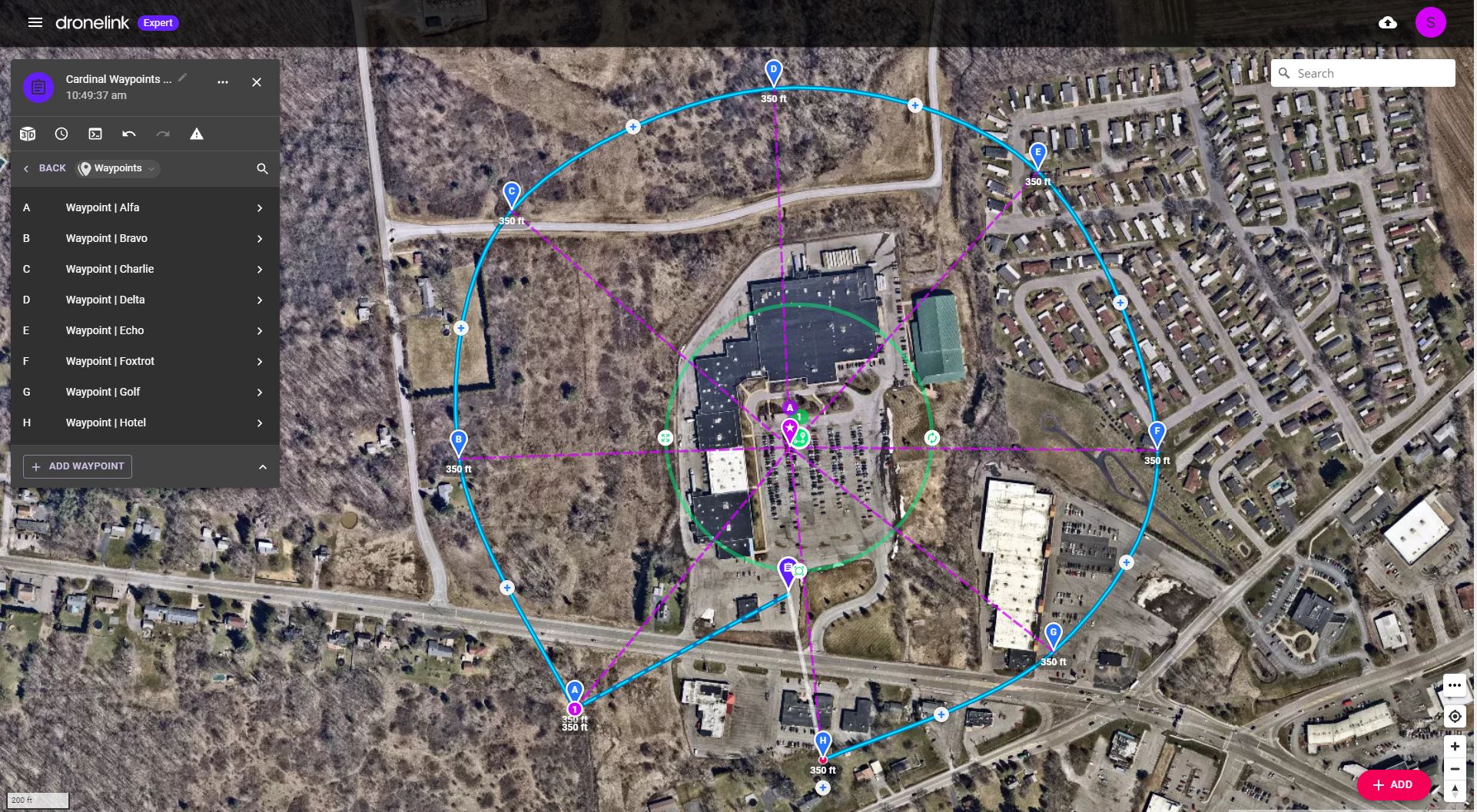
Try the photo component. You will need to add a POI for each but easy enough to place them right on top of each other. Also when it rotates to the POI it has a pause to take the photo before moving to the next one so no movement. It may work for your situation. You can even use that path you made like a template and add the photo components on top of it at the same spots and distance as you have it set up then just delete the Orbit.
Mike,
Hüseyin KAYA. The comment I made was on utilizing just the photo component not any path. There a several ways to capture photos on a path so it will depend on your needs. If you want to use a path and add a photo component then add a path marker and then add photo component. However, when you do this it will split the path to insert the photo component. If just wanting to take one photo or start photo intervals then add a path marker anywhere along the path and add start capture. As long as the camera has already been set at the beginning of the plan the only command needed is a start capture. There are usually several ways to set up a plan for your needs and some pilots like doing it a bit different then others. If you need further assistance you can share your plan and someone can take a look and see if they can help to get it the way you want.
Regarding RTH. When setting up a plan in the Web app it is defaulted to RTH for action on finish or completion of mission. So you probably changed it whether intentionally or not to None which means it will just Hover.
Hello
Here is the test mission link that i created to test the topic discussed https://app.dronelink.com/hsynkaya/shared-Pj1woKoxb3OHXqunQuXC/plan/gb64ZrnNS0tQwfwZD48Z/Q5U6JwU5IYroDGGS4BVT
It has just two photo command but end of the mission the drone did not initiated to return to home at the end of 2nd photo component (as far as it is not initiated in Mission Preview).
how can i manage the drone to return to home ?
Are you able to reproduce this every time you run this mission or did it only happen once?
You can always manually initiate RTH from the hardware button on the RC or the software button on the flight dashboard in Dronelink.
Jim
This occured in eveytime that i run a mission in Mission preview.
I created a few test mission in web app and i can confirm that at the end of mission it is not showing that return to home is initiated in the Mission Preview ( i tried photo command , and orbit) . Also i can confirm that "action on finish" is set to Return Home.
As i said these were just for testing in web app , and i didnt tried to fly them
Regards
Hüseyin
The mission preview doesn't show RTH.
Hüseyin KAYA. Yeah the plan is set it correctly for RTH so keep DL up to date if it happens all the time. If it happened just that once and is but repeatsbke as Jim mentioned then that’s technology for you. It’s never perfect. The only other thing I can think of is if you accidentally pushed the Pause/RTH button it would have stopped the drone and just hovered. It doesn’t take a lot of pressure and I’ve read others which had this happen because they always have their thumb on the button encase and issue arrises. They accidentally apply a bit of pressure and it stops. Probably not the reason but just kerp that in mind. Good luck.
Please sign in to leave a comment.