Conflicting coordinates in Pano Component

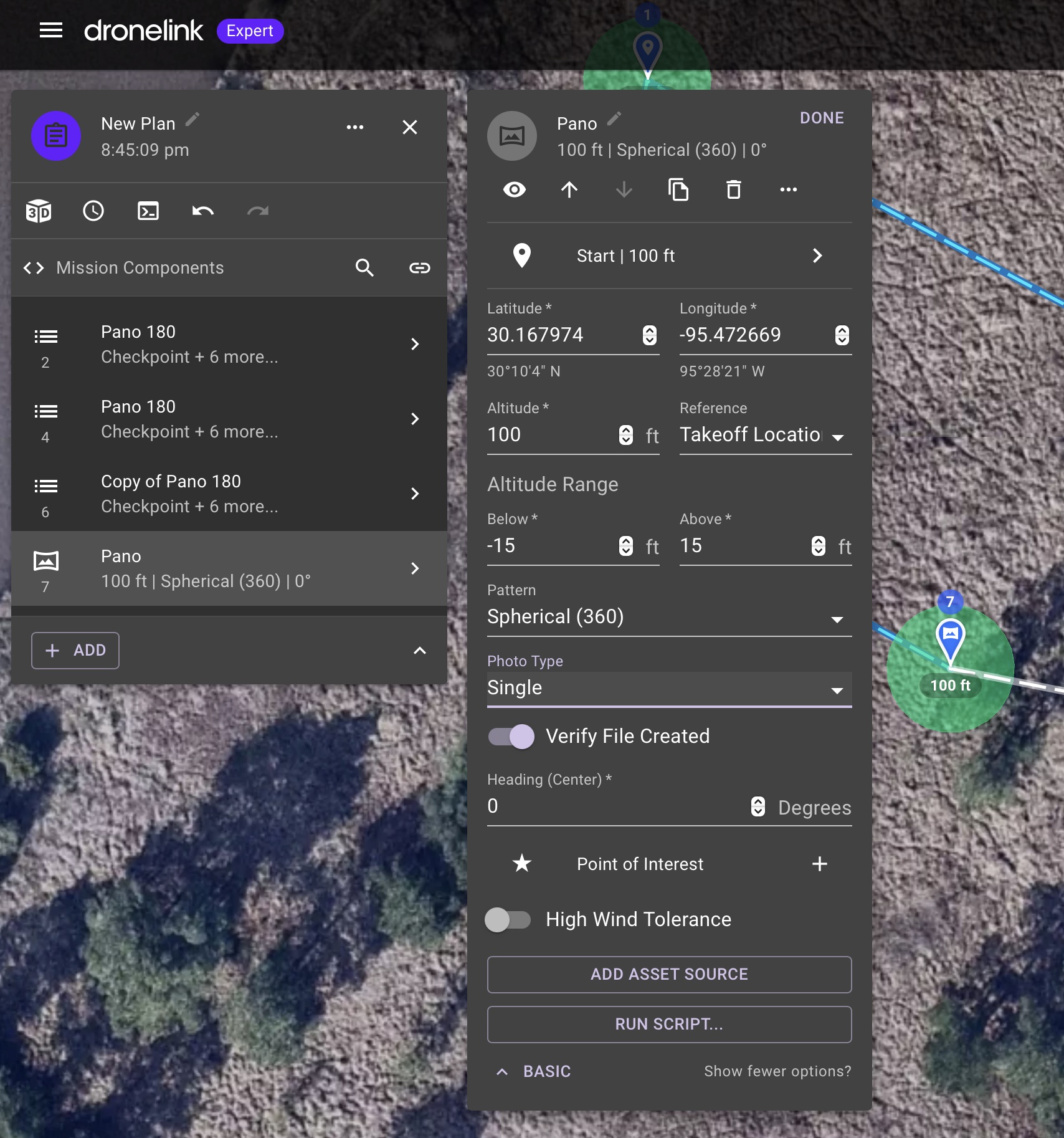
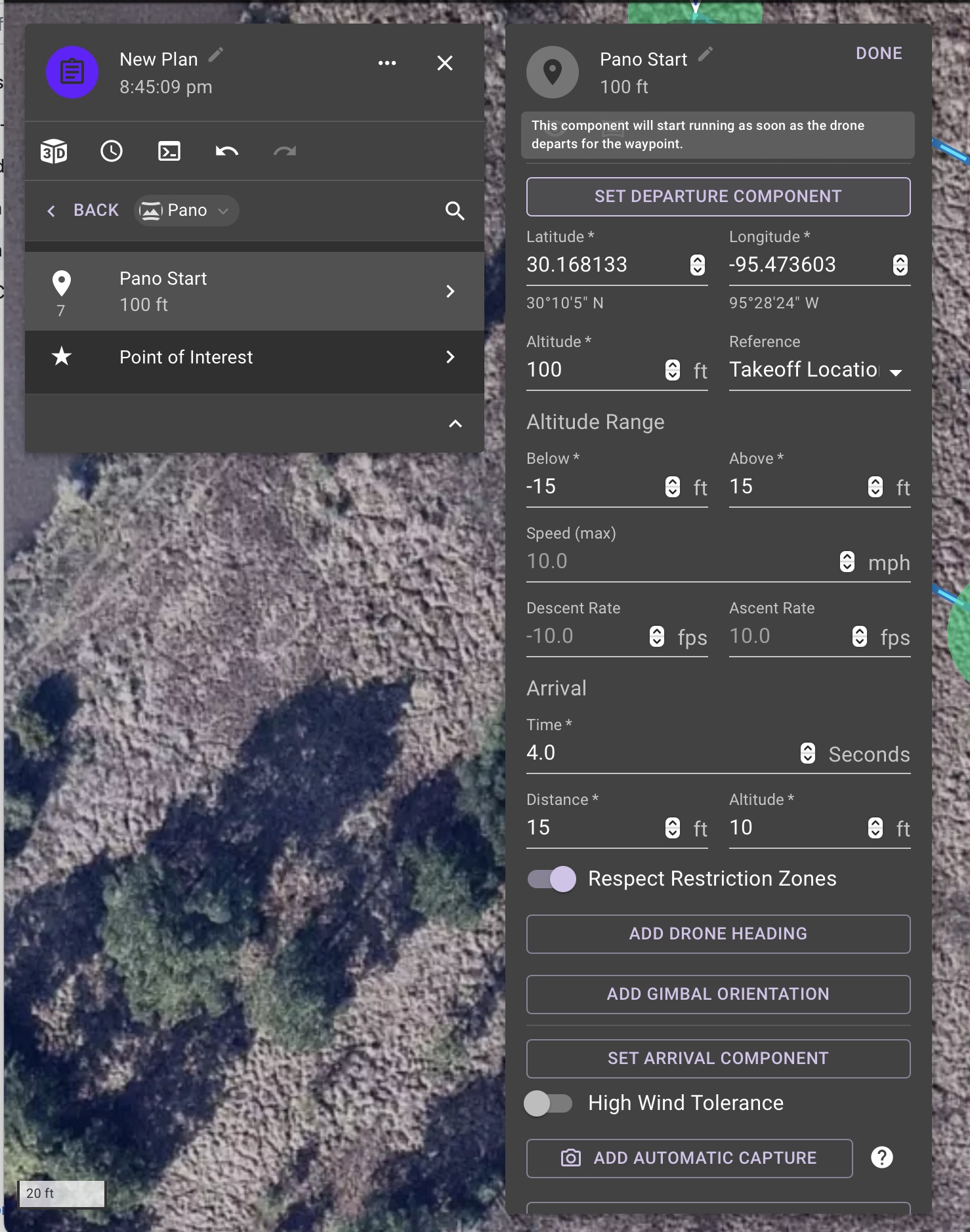
When editing the parameters in the Pano Component (in expert mode), the coordinates shown in the main Pano window/pane are different than those shown when you click in to the Start|(Altitude) section.
It appears the correct coordinates are those found within the Start|Altitude section. As those are the only set of coordinates that update when dragging the point around in the map.
However if you numerically change the coordinates in the man Pano window, it will move the the point.
It would be nice to have a Pano component that is coordinate agnostic, so it can be added to a list after a checkpoint.
Comments
8 comments
Hi Salvador Garza, it looks as though you are using an old pano component, if you right click on the map and select pano, you'll end up with the one shown in this screenshot, just then set it as a 360(default) or 180 pano, if you do the latter, you'll need to add a POI to fix the center point of the pano
Hi Martin,
Thank you for the quick response. I'm using the new Pano component. It's #7 (highlighted) on my plan. The ones above it I was just playing around with "building" my own.
I'm just now trying to create a New Plan. When entering the specific coordinates, it will not take them (Mission > Pano > Lat and Long ). I have click into the Start | 100ft (Mission >Pano > Start | 100Ft), and enter them there. The marker then goes to the correct position on the map, however the main Pano component lat/long do not match neither the position nor the coordinates I manually entered in the Pano > Start | 100ft > Latitude & Longitude.
***UPDATE: Here's a screen recording showing the issue:
https://drive.google.com/open?id=1quoTxoR8CbgzBa3DmQby9HNroJrIMePp
The coordinates shown in the main Pano component appear to be those of the "Plan" marker/point.
Yes, the coordinates do not work.
Adding a pano component to the map will display its coordinates, but moving it will not update its coordinates, nor will entering new coordinates move the element to the correct location.
Not sure if I’m understanding the question but I’m having no issue. The main window coordinates is for the purple reference pin, (take-off location.) The start of the mission is the pano component. Both change when I drag them to another location.
The way it seems to behave is a bit odd.
There appear to be three layers:
1-The reference pin, which has no coordinates shown when you click on it - they are instead shown on the pano component
2-The pano component - all of them (I have multiple) have the same coordinates, which is the coordinate of the purple pin, despite the pano component I'm clicking on being nowhere near the takeoff point
3-The actual coordinates of the pano are in the pano start sub-component
Editing the pano component sometimes seems to transfer the data to the start subcomponent - but since coords are in two fields, it resets before the second one is done, so when you put the long in, it's already reset the lat back to what the start point was, and the pano ends up in the wrong spot. Other times, it just doesn't do anything, and whatever coord you enter is reset after a few seconds - it seems the only way to move it properly seems to be in the sub-component.
This is different from the behaviour of, say, the altitude field, which updates the sub-component and then stays synced with the subcomponent. Changing either updates the other.
Forget entering the coordinates. Just unlock the icon and drag the Pano component at the location where you want it to capture photos and your done. No need to worry about the reference pin as it is just for planning purposes. The main mission card of the Pano component just shows the reference pin coordinates for other reasons and is not important. The start which is on the right side card is the actual coordinates of the Pano.
Entering coordinates directly is not a great experience right now, which is why it is buried in expert mode.
Coordinates are essential for many reasons, not least because the dronelink map is unusable due to its extremely low resolution. Suggesting to forget about using them is ridiculous.
Please sign in to leave a comment.