How to get Onboard Waypoints on Mavic 4 Pro to work?

The Mavic 4 Pro is only listed as being supported using Onboard Waypoints. I use mavic 4 Pro with RC Pro 2, but unfortunately I can't see anything in the Android folder. "Show hidden files " in Windows is activated. No access via MacBook, no acces via controller.
It seems that Dronelink Onboard Waypoints are currently not compatible with RC Pro 2. It would be cool if this information was on Website. Is it possible to use M4Pro with the RC Pro 2? If not, with which controller can you use Mavic 4 pro with Dronelink? (RC Pro 1 is not compatible with the M4P)
Comments
8 comments
Have you gone through the support article. Any drone which supports DJI onboard will work with DJI Fly or Pilot app. You need to convert to onboard first then export the KMZ into the DJI Fly waypoints folder per the instructions.
Yes, I have read support article and I know that you have to export KMZ file first and then replace it in controller. I also have Mavic 3 Pro Cine + DJI RC Pro (1) and everything works fine there.
As I have already written, you cannot view files in the Internal storage android->Android folder. (see photo)
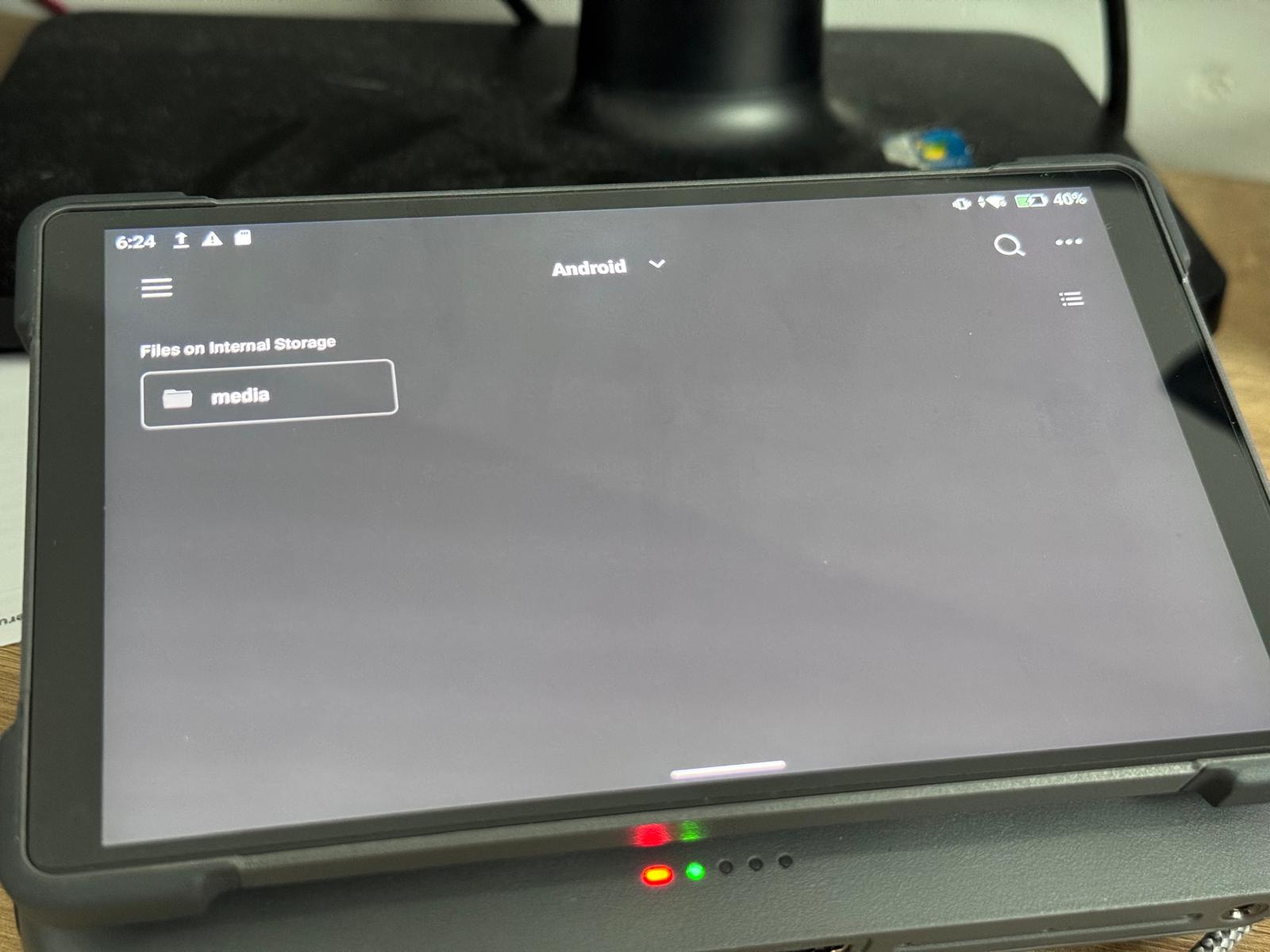
You also can't view files when controller is connected to PC or Mac.
So I have to ask: did you get Dronelink to work with the Mavic 4 Pro and the new RC Pro 2?
I don’t have that drone & controller, I’m just another pilot like yourself trying to help. Regardless of which RC controller the process should be the same. If you can’t find the find the file on the RC Pro 2 controller then maybe it’s in a different location than the RC Pro. I suggest going to the DJI Forum where you will find several threads regarding how to find the file on any of the RC controllers.
I did find some information on specifically the DJI RC Pro 2 for importing KMZ files into the Fly app which may help. I took a screenshot of the process. Sorry I can’t help more. Enjoy.
Hi Mike,
Sorry if my answer came across as rude, I was frustrated because I asked the question on various groups and chats and always got the reference to the same instructions / tutorial that doesn't work. Chatgbt don't understand the difference between different controllers anyway.
I solved my problem at the end of the day:
1. for macbook you have to install a program (Andorid file transfer) to access dei file structure, for RC PRO 1 it is not necessary.
2. PC: after several attempts with reinstalling drivers and switching on various options via developer mode, my PC also recognized the controller as a hard disk. Unfortunately, I can no longer trace exactly which option led to this.
3 DJI RC PRO 2: it is still not possible to access the files directly, you always need a laptop / PC. A bit of a shame because I used to prepare the files on my PC and then simply send them to the controller via bluethoot.
Does sound like a pain. At least it works. Enjoy.
Hi Cinelifter Media,
were you able to get this to work? I have not been able to access files on my controller and so unable to replace the file and run the waypoint project. Also, what Andorid file transfer did you use? I can not get my controller to connect or my computer to recognize the controller when connected via USBC
Hi Damian,
I really can't explain it, but one day my Windows PC just recognized the controller and I can suddenly access all the files. Now it is recognized every time (USB-C to USB-C, turn on the controller). Try restarting your PC, updating the controller, activating developer mode, and activating USB debugging.
On the Mac, I used the program: https://www.chip.de/downloads/Android-File-Transfer_53192185.html
P.S. Funny, my name is Damian too :)
Please sign in to leave a comment.