Mission Failed. What to make of the message?

Very first attempt at a simple mapping mission. Took off fine, flew to the start location fine, then "Mission Failed". Second attempt, same message. It was getting dark so I didn't have much time to try to tweak things. There was also a message at one point after the fail with some kind of AirData warning/message. Didn't capture that as my main concern was just landing and live to try another day.
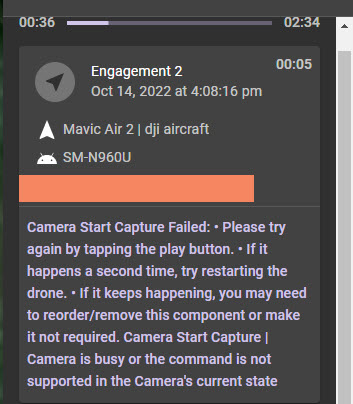
The message in the app seems to pinpoint what went wrong, but not sure where to edit that setting:
Comments
7 comments
Can you share the plan ? There may be something in it which is causing the issues. According to the message it could be your trying to start a video when it’s already running. If so just place a stop capture before the next start capture video command. Seeing the plan will help.
Wellll... I'm afraid I messed with this back on the PC to the point that it's not recognizable as a mission! :-)
Recreating it now and will try to run it now. But for a mapping mission, there shouldn't be video involved, right?
Ok, created a new similar map mission. Loaded the mission and tried to take off... no go. ?? Ah, "AirSense Alert". Strange as it's very rural here with little to no plane traffic typically. So, waited a bit, restarted everything, AirSense warning gone. Take off was smooth, flight ran great with no errors of any kind, all images captured just fine and AirData log captured perfectly.
Purchased WebODM installer version, loaded the 67 .jpg images and it resized and processed them in about 7 minutes. Downloaded the Orthophoto TIFF and brought it up in Photoshop. In short... everything worked perfectly. VERY pleased.
Everything that is except for a pretty blatant user error. It was late afternoon and sun has just dipped down below the distant ridge and I could see immediately that I had things set up as too low and too fast. Sure enough, captured images were all but unusable given the motion blur. Could care less about that for purposes of this first test and still very pleased with the overall mission.
Sooo... If had set the camera to manual mode in DJIFly and used a higher ISO, would the mission have used those settings? Of course I also could have set the speed to slower than the 10 MPH default as well as flown higher-- both of which would have helped. Not sure what camera settings could be set within the DL app (Mavic Air 2) but will have to look at that.
That's good to hear.
All of the things you mention make sense. But, you can also put all of those things such as speed, ISO, etc. into the mission itself so that you never have to remember.
For the most part, however, I would slow things down and then use Auto until you know what works best for you. Since you have the installed version of WebODM processing is free so you can experiment with different options.
BTW - for orthomosaics, the best light is often on days that are bright but with full cloud cover as that acts as a natural diffuser to reduce shadows. But...that is great for data capture but not so great if you want something to look nice :)
Barry,
Thanks much for the input. I had watched your 5 minute video about "Setup Missions". Will definitely incorporate the methods described there into future missions. I would urge others who might not have seen that video it to check it out.
Perhaps a couple of different "presets" to use for different types of missions. I can do a check flight under similar conditions as this past one, set the camera to manual and tweak things to get the best exposure then use that setup for any future flight with similar conditions.
As for best light, it's just too bad my former aerial photo clients didn't feel the same way. But no... they had to have N-S-E-W shots (and vertical) with the horizon showing beyond the target site and preferably with a blue sky. And oh yeah, definitely no cloud shadows anywhere near the target site. Needless to say, such prerequisites tended to make planning flights a real PITA.l
Bright/overcast definitely the way to go for best most consistent detail without dark shadows and harsh contrast.
Tim,
One of the great things about DL is that it lets you create patterns and then save them as your own components for future use.
For example, I have a component for trucking shots that covers all sides of a building. I use it over and over, just using the handles on the component to resize/rotate it to fit the building I'm shooting. Using that I find that a gimbal angle of between -15deg and -18deg usually gives a good shot with the horizon visible.
I also use the 3D planner to check shots and that shows if the horizon will be in view when planning. If you haven't seen that Five Minute Friday video yet then you can check it out here: https://vimeo.com/726464075
Hope that helps!
Tim. There is a Auto Capture with the map component. Maybe it was on video instead of photos on the other plan which had issues. Or accidentally turned on. Sounds like it’s working now though.
The Air Sense alert is just that, an alert. I live in a very rural area as well and still get those dumb alerts on occasion. Even though I have never turned on Air Sense in the DJI Fly app and I haven’t seen anyway of turning it off in DL. Not sure why DL is reporting that. I don’t worry about any aircraft at 20,000 to 30,000 feet and 30 miles away. It will report how far away so if no possible way of interfering with it I just fly. It will not keep the aircraft from flying. Pilots choice though. Good luck & Enjoy….
Please sign in to leave a comment.